Very often it can be useful to remove certain data before it gets stored in one or more of your Google Analytics profiles. When this is what you need Google Analytics filters come in handy. By applying filters you can get a better understanding of certain visitor types through segmenting and filters can make the data more meaningful as well. There are literally an unlimited amount of filters that can be created.
In this post I will discuss eight very useful Google Analytics filters that you can directly apply to your unique situation.
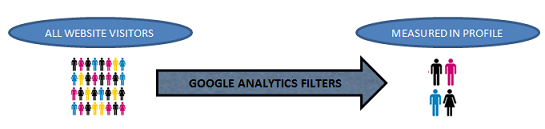
Filters can be created and applied by any administrator with access to your Google Analytics profiles from within the admin tab in your Google Analytics account.
Ok, let’s start with the first one.
1. Include certain known visitors
Especially for testing purposes, I like to create a separate profile in which I collect data limited to my IP address. Let’s say you are reviewing your Google Analytics implementation and want to know whether the data collection is right. Then you might be interested in setting up a profile in which only your behaviour is registered:
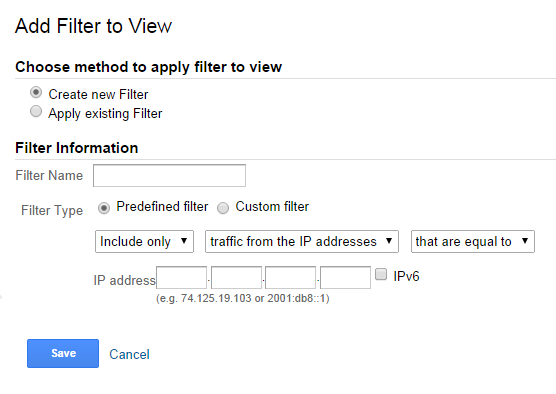
Just fill in your IP address and a Filter Name and apply it to one of your profiles and you are ready to test!
2. Exclude certain known visitors
Excluding visits from your staff or any known third party is very important when setting up your profiles. Very often these visitors generate a huge amount of pageviews and they show behaviour that is totally different from the ‘normal’ website visitor. This way they can easily impact key metrics like conversion rate, cart abandonment rate and many more of them.
Eventually this may lead to bad online marketing decisions. Jusy apply the filter that is shown below to overcome this:
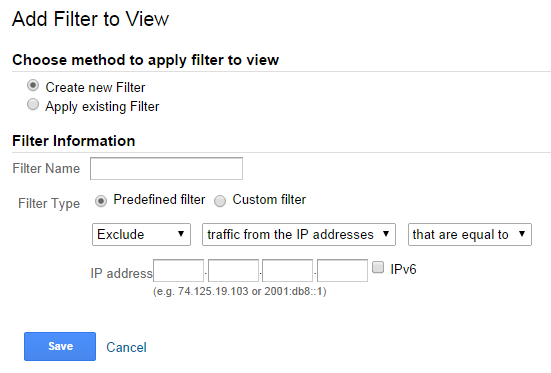
One more tip, if you set up a range of IP addresses you should take a closer look at this helpfile:
http://www.analyticsmarket.com/freetools/ipregex.
When you need to exclude a range of IP addresses, you need to use a slightly different Google Analytics filter:
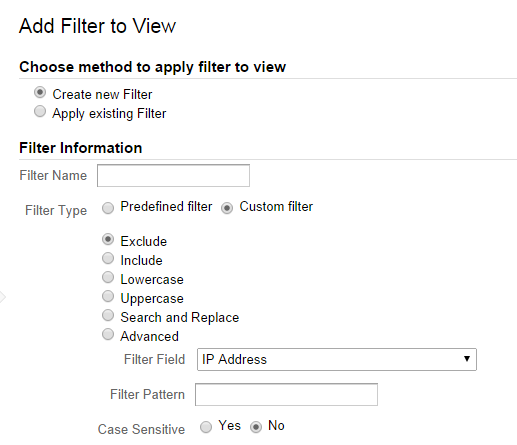 This filters allows you to use regular expressions.
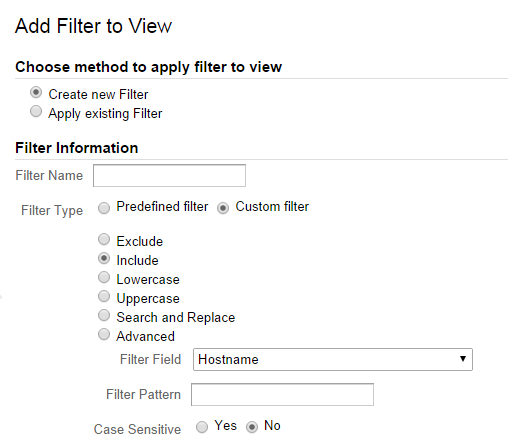
3. Include Only Your Website(s) Traffic
Your Google Analytics account and profiles are unique in a sense that they have a unique UA-code. If you want to make sure that no person can hijack your code and implement it on their website to influence your webstats, you want to include the following filter:
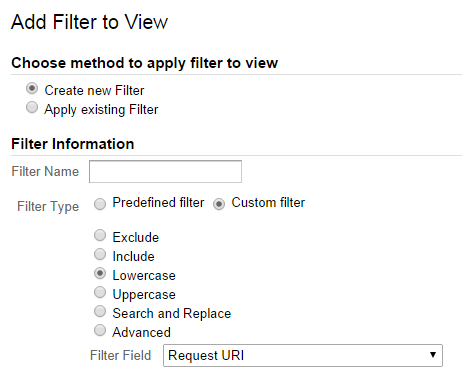
4. Force Request URI to Lowercase
Quite often website URLs can be approached in different ways. What I actually mean here is that the URLs can be written both with lowercase and uppercase characters. As an example: https://online-metrics.com/about-Us/ and https://online-metrics.com/about-us/.
The URLs look the same and will direct you to the same content, but they will cause two different pageviews to be created in Google Analytics. With the following filter Google Analytics will record both pages as one: https://online-metrics.com/about-us/.
5. Force Campaign Parameter to Lowercase
In order to get the most out of Google Analytics it is crucial to tag your campaigns with the right parameters.
For example, if you pay for a banner on a commercial site, Google Analytics will on default measure visits from this page as a referrer. You might want to reconsider the name of this campaign and alter how it shows up in Google Analytics.
Without going into too much depth on this topic, I would recommend to install lowercase filters for this campaign parameters as well. An example, one person tags a campaign as “email” and the other person as “Email”. This would lead to two defined media instead of one.
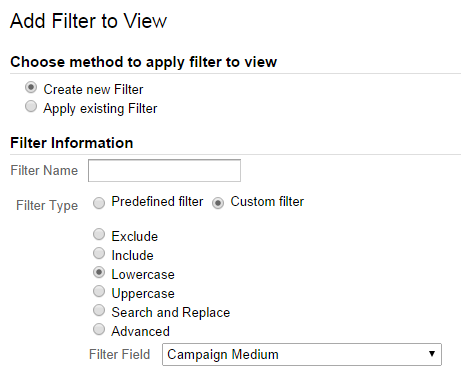
As a minimum, I would apply the campaign lowercase filter to:
- Campaign Source
- Campaign Medium
- Campaign Name
- Campaign Term
- Campaign Content
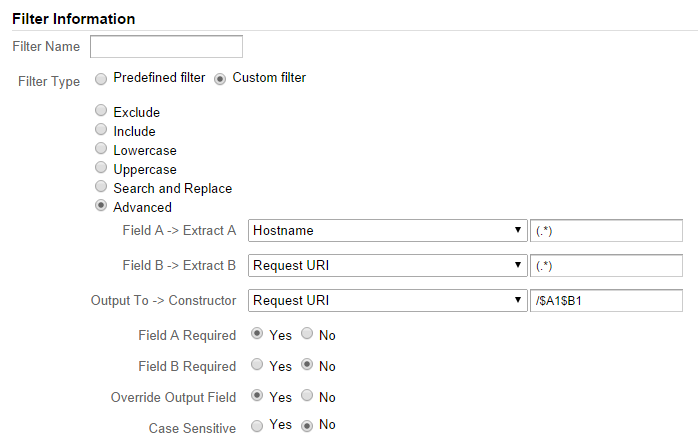
6. Combine Hostname with Request URI
If you have a multidomain implementation of Google Analytics running and collect the data of both domains in one profile, you cannot distinguish the same page names (Request URIs) in Google Analytics.
An example: siteA.com/index.php and siteB.com/index.php. In your “All Pages” report in Google Analytics both pages would be registered as /index.php. So in order to distinguish between them you need to rewrite the Request URI and include the hostname. This is what the filter looks like:
7. Segment by Visitor Campaign, Medium or Referrer Source
Google Analytics shows you a lot of information which you can use to optimize your online campaigns. In some circumstances you might want to take a closer look at one of your campaigns or media. With the right set of Google Analytics filters you can segment certain campaign data which you can analyze separately.
For example, one of the four traffic media that Google Analytics measures on default is cpc (cost per click). If you want to segment this data before it goes into a profile, you can use this filter:
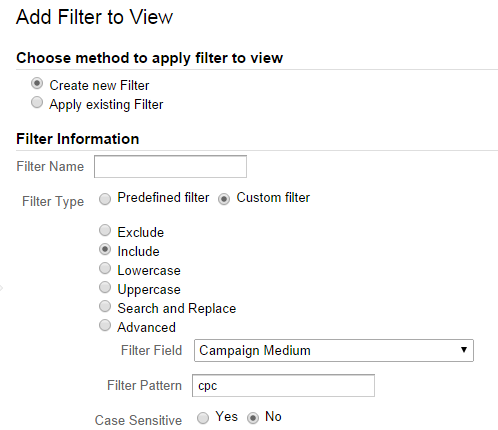
You can use segments when you want to segment on-the-fly.
8. Segment by Geographical Region
Since I am living in The Netherlands I might be interested in taking a closer look to how my websites are doing in The Netherlands, Belgium and Germany. Therefore I need to set up a profile that only include visitors that come from these three regions:
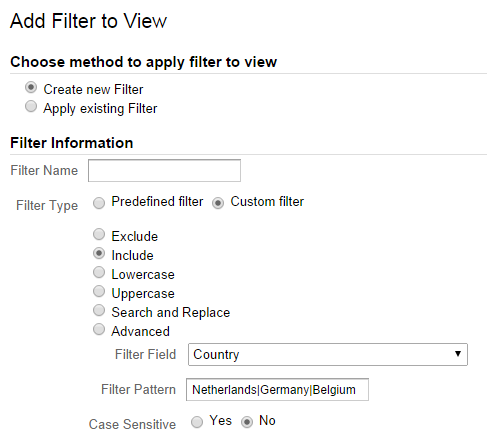
You can modify this filter to your own situation.
BONUS!
Let’s discuss one more filter.
9. Remove all Query Parameters
If you are running a website with a lot of technical query parameters you might consider filtering them all out from your data in Google Analytics. This way you can reduce the actual number of pages that show up in Google Analytics enormously and give the data more meaning.
For example: siteA.com/order.aspx?id=100012 and siteA.com/order.aspx?id=100013 are most probably exactly the same pages and you should measure them as one: siteA.com/order.aspx (without the query parameter). Here you can review the filter:
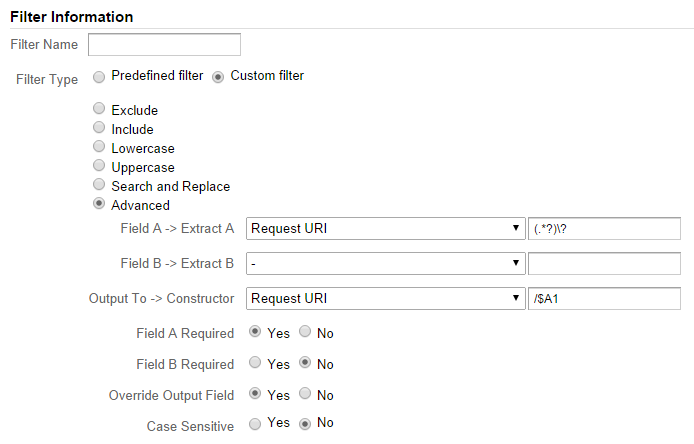
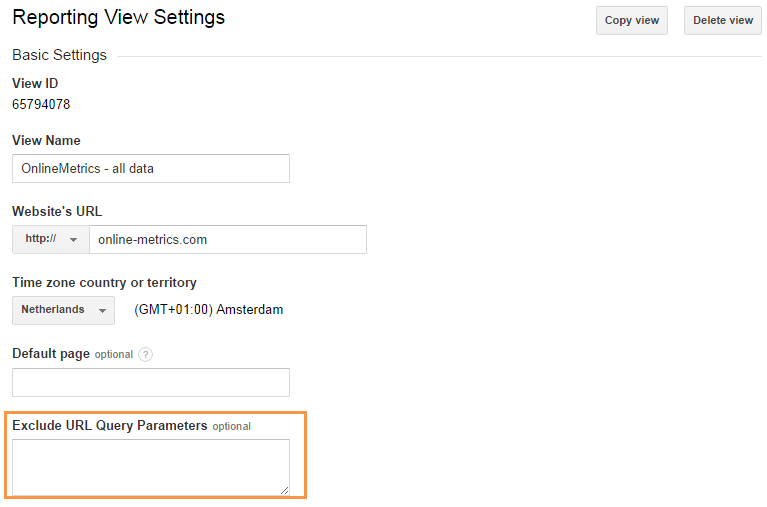
Be cautious before using. This filter eliminates all query parameters in the profile where the filter is applied to. If you have just a few query parameters that you like to eliminate, you can add the query parameters to you profile settings as shown below:
I hope these Google Analytics filters will help you to get more out of Google Analytics.
Let me know what you think. What other filters do you use? Make sure you check out this 20 steps Google Analytics implementation guide as well.
Is there a way to force all keyword searches to lowercase, so I don’t get 2 separate entries in my reports, say, for someone searching for term “ltc” and “LTC”?
Hi Michelle,
Thanks for your comment. It is quite easy to set this up.
Your keywords (paid and organic) are recognized in Google Analytics by utm_term.
Just apply filter #5 to make this work:
1. Add a new filter
2. Choose “Custom filter”
3. Choose “Lowercase”
4. Select “Campaign Term”
Let me know whether this helps you out!
Best,
Paul
Hey Paul!
Thanks for a wonderful article :)
Do you konow if it is possible to filter out example.com traffic and only show http://www.example.com traffic?
Hi Juuso,
Good to hear you like it! :-)
About your question. Yes, this is possible.
You need to use filter #3 and slightly modify it to make this work:
1. Add a new filter
2. Choose “Custom filter”
3. Choose “Include Hostname”
4. Filter pattern: ^www\.example\.com$
Before setting this up as a filter, you can test it using advanced segments.
Reading suggestions:
https://online-metrics.com/google-analytics-advanced-segments-vs-profile-filters/
https://online-metrics.com/10-most-useful-regular-expressions-in-google-analytics/
Just let me know if you need any more help!
Paul
Thanks Paul. Great article. How do I track clicks onto one particular webpage. http://www.example.com/go . I want to see how many people are clicking the link to the page from the landing page. Is it possible to do this with a filer?
Thanks for your reply Elliot. I feel Google Analytics filters are not the way to go in this case.
There is more than one method that could deliver your desired result, but I would advice to set up “event tracking” to make this work.
This guide will help you out:
https://developers.google.com/analytics/devguides/collection/gajs/eventTrackerGuide?hl=nl#SettingUpEventTracking
(The value parameter is optional)
You have to add the event tracking script to the link that leads to “www.example.com/go”.
For further analysis you could set up an advanced segment with regards to this event or add this event as a goal to your Analytics account.
Let me know whether this works for you!
It was a great article. I am just a beginner when it comes to Analytics. I was wondering if there is a way to find out that if a visitor has bookmarked the site by visiting through search engines(or remembers it) then visits the second time directly(without the search engines) and makes a conversion, then is there a way to track those specific cases.
Thank you
Hi Anusha, happy to hear you like the article!
Yes, the topic you are referring to is “Multi-Channel Funnels”.
In order to make this work you need to set up a goal and/or ecommerce. After you have set this up correctly you have to go to the following Analytics report: Conversions >> Multi-Channel Funnels >> Top Conversion Paths. Here you can find all the conversion paths that led to a conversion. Including the one you described above.
Be aware that I would encourage you to first check out the easier reports, because this topic is certainly an advanced one.
Good luck!
Thank you so much! I came to know a lot about Multi channel funnels and I have set them up.
Great to hear, just let me know if you need any more help!
Hello,
I want to exclude pageviews from showing up on my Google Analytics reports for those people who are just clicking on pages to find the careers page to find a job.
We’d like to negate this user from showing up on the reports or negate pageview metrics for users who end up landing on the careers page.
How do we filter out these type of pageviews?
Thanks
Hi Sheri,
I am happy to help you out.
Could you fill in the details in my contact form so that I can accurately address your needs/situation and come up with a solution?
Best,
Paul
Hey Paul, thanks for the article. I have a question about the “cpc” filter (example 7). Let’s say that a user comes in with a URL that includes the parameter: utm_medium=cpc. That user then proceeds to fire off an event that I want to track (like completing a sign up flow). Does the URL have to keep the utm_medium=cpc parameter throughout the user’s entire visit to be tracked in that filter, or since the user arrived with that parameter, will it be counted even if the parameter gets stripped out after going to another page?
Hi Alec,
Thanks for your comment and good question.
When the visitor arrives on your website with the parameter “utm_medium=cpc”, this cookie value is set for the entire visit. This means that all the subsequent pageviews are counted as “cpc”. And in most cases the utm parameter will automatically disappear after a “click”.
If you are unsure about whether the parameter stays, I advice to use the “real time reporting” feature to test your own session.
For testing purposes, you could use one profile/view with filter #1.
More info on real-time reporting: https://online-metrics.com/real-time-reporting/.
Good luck and just let me know if you have any other questions!
Best,
Paul